
Going live on Insight Timer is one of the best ways to connect with your community in real time. Promotional Cards are a powerful feature that lets you highlight your offerings right in the live chat window. When you post a card, your attendees can interact with it and explore what you're offering without ever leaving your session.
What are promotional cards and why use them?
Promotional Cards let you feature specific offerings directly in your live event chat. They're a great tool to spotlight your offerings at exactly the moment when your audience is most engaged with you and your content. Whether you want to showcase a course, encourage donations, promote an upcoming retreat, or highlight a free track, promotional cards make it easy for attendees to discover and engage with your work.
When you post a card, attendees can interact with it without interrupting the session flow. They can browse details, save content, or take action immediately if they're interested — all without leaving the live chat.
Types of promotional cards
Card type Description
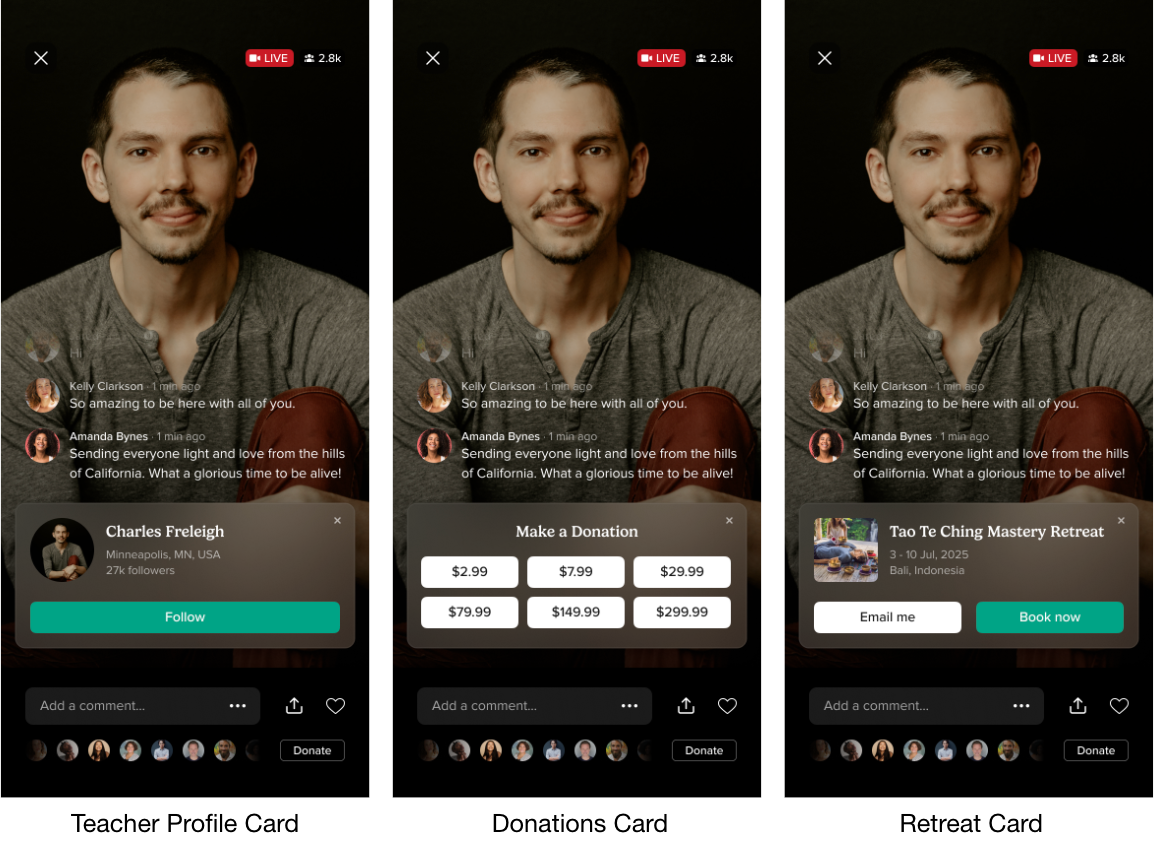
Teacher Profile Displays your photo, name, location, follower count, and follow button. Great for growing your audience and building a loyal following.
Donation Prompts attendees to donate during your event. Perfect for sharing at session end or when mentioning how contributions help you teach.
Retreats Highlights retreat details and links attendees to learn more or request an email about your retreat.
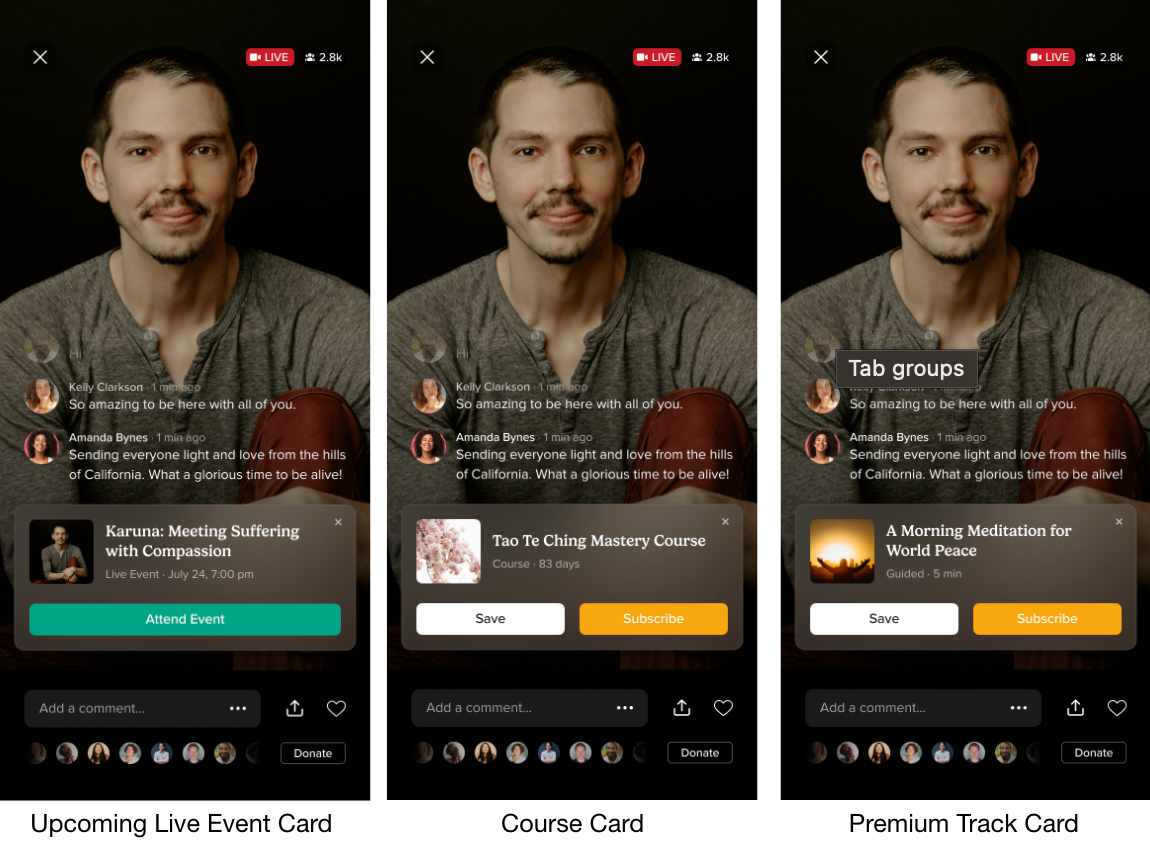
Live Events Displays an upcoming live event you'll be hosting. Helps you promote future sessions and keep your community informed.
Free Tracks (coming soon) Displays track photo, title, and duration. Will let attendees access your free content directly from chat.
Premium Tracks Displays track photo, title, and duration with save/download options for MemberPlus subscribers or subscription prompts for others.
Courses Displays course photo, title, and duration with save/download options for MemberPlus subscribers or subscription prompts for others.
Earn more by sharing promotional cards
For every new paid subscriber who joins through one of your promotional cards for premium tracks or courses, you'll receive a US$10 thank-you payment. These earnings will be reflected in your monthly statement and included in your regular payout.
How to set up promotional cards
You can set up Promotional Cards in advance before your live event, or add them on the fly while hosting.
Method 1: Set them up before your live event
- Log in to your Teacher Dashboard
- Go to the Live Events tab
- Select the "Promotional Cards" button in the top right corner
- Click "Add Promotional Card"
- Choose the type of offering you'd like to promote and search for the specific content
- Click "Add" and your card is ready
Watch our step-by-step video for a complete guide on setting up your first promotional card:
Method 2: Create them during your live event
You can create and post Promotional Cards in real time during your live event. This is especially handy if attendees ask for specific recommendations or you want to make an impromptu offer.
How to use promotional cards during a live event
Once your live event is underway, sharing a card with your attendees is simple:
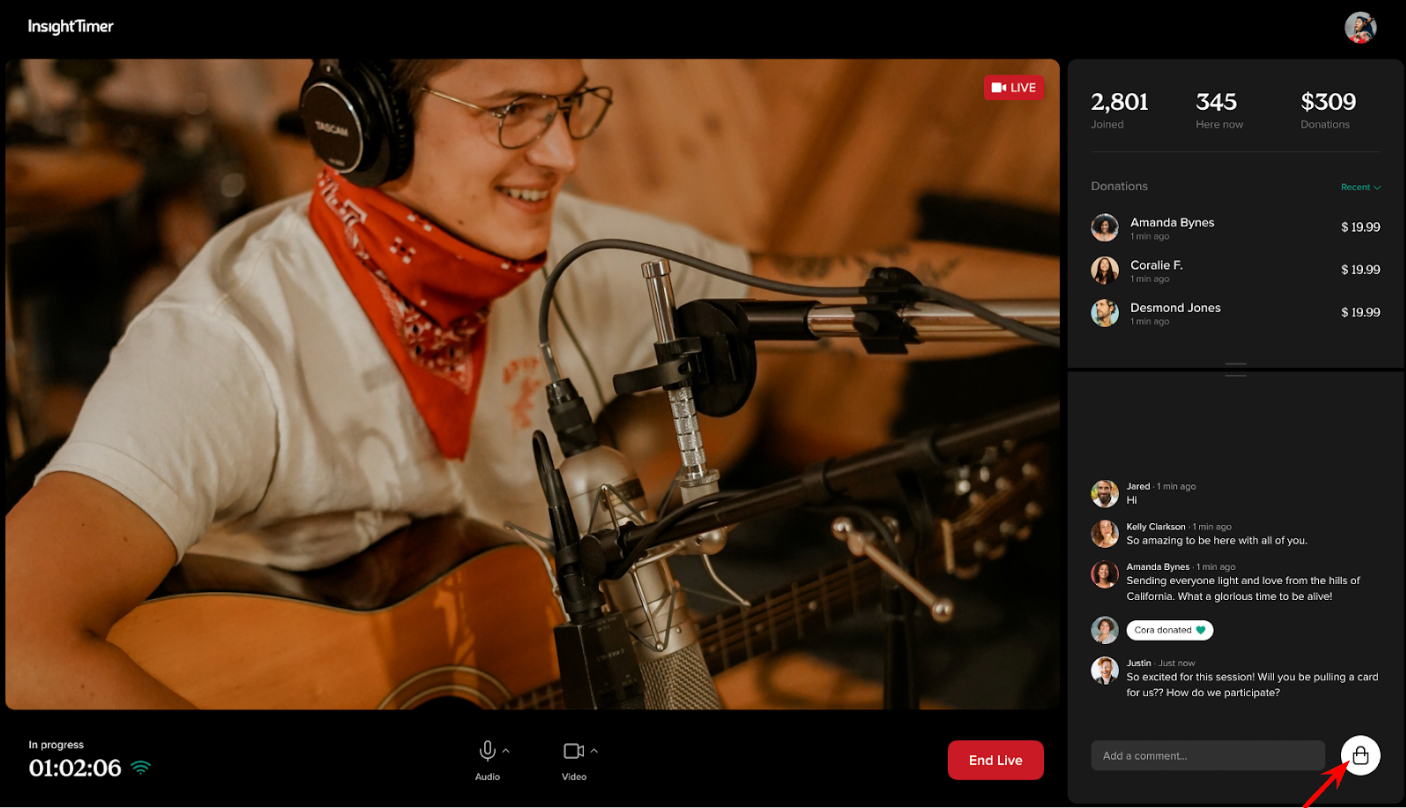
Step 1: Access the Promotional Cards menu
- Click the Promotional Card button next to the chat (the shopping bag icon)
Step 2: Select your card
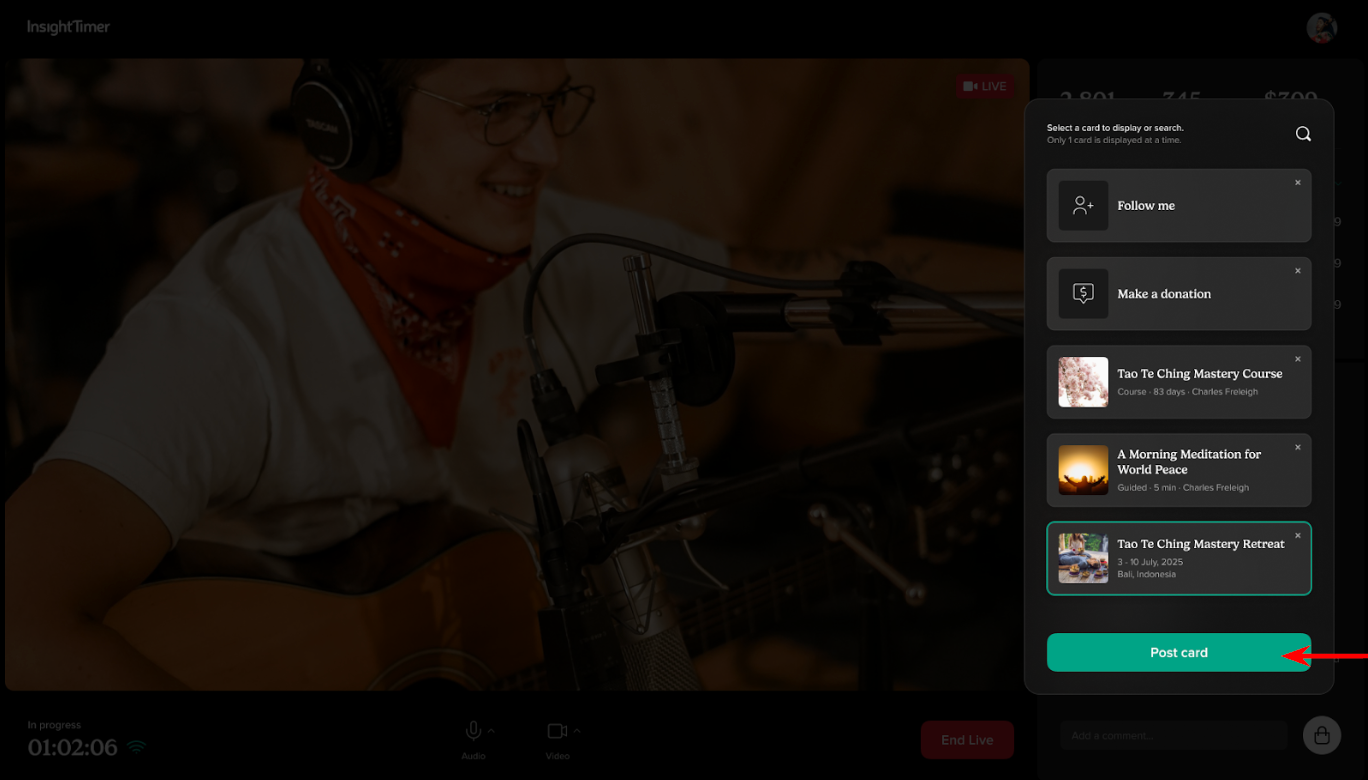
- Your pre-set cards will appear automatically in this menu
- Select the card you want to share, then click "Post Card"
Step 3: Watch it appear in chat
- The card displays to all attendees immediately
- Remove it by clicking the X button when you're done
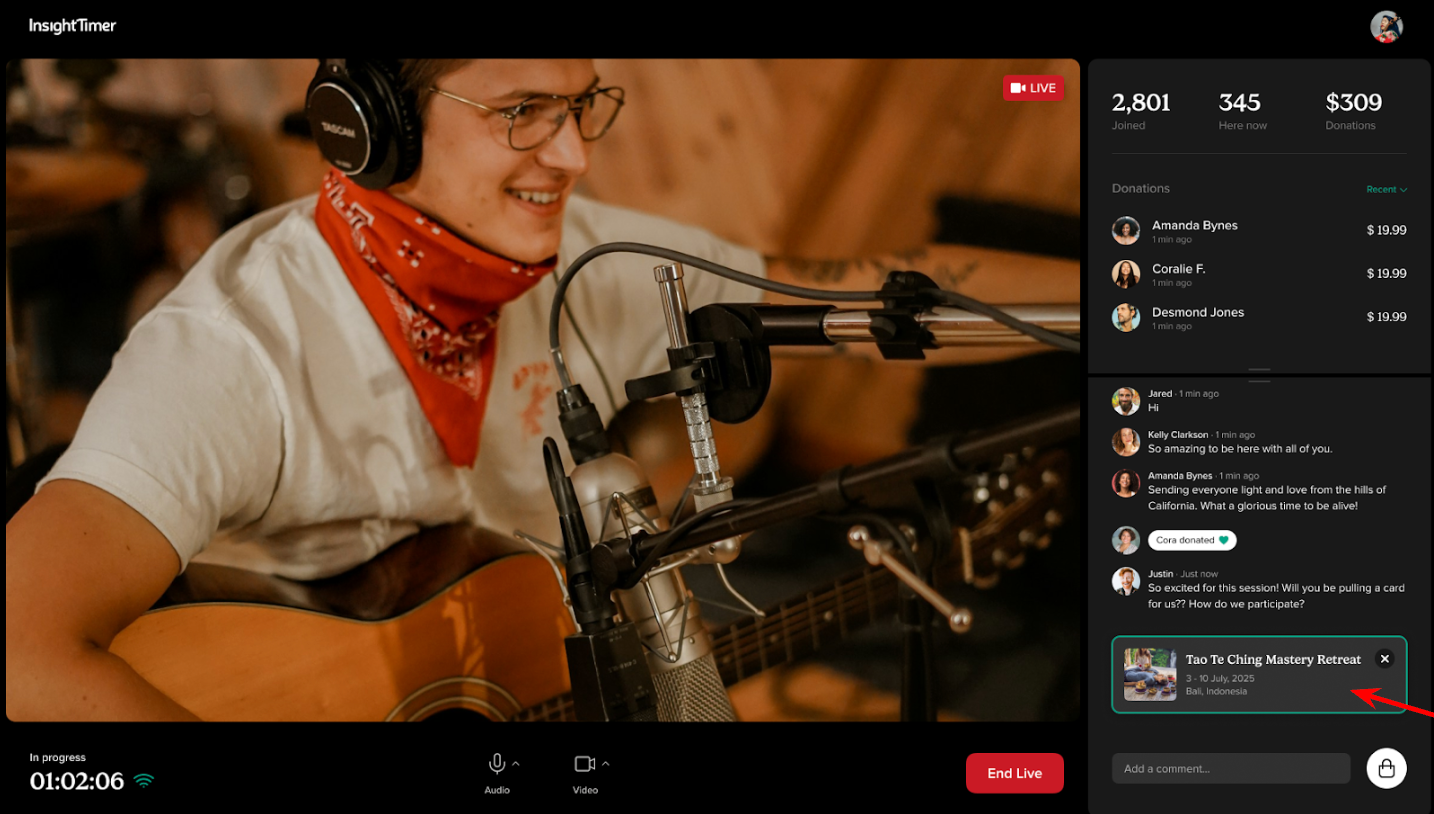
Important things to know about posting cards:
- Show cards back to back by selecting a new one — it automatically replaces the current card
- Only one card can display at a time
- Important: Manually remove cards when done. They'll continue showing if you don't remove them
Creating a promotional card during your live event
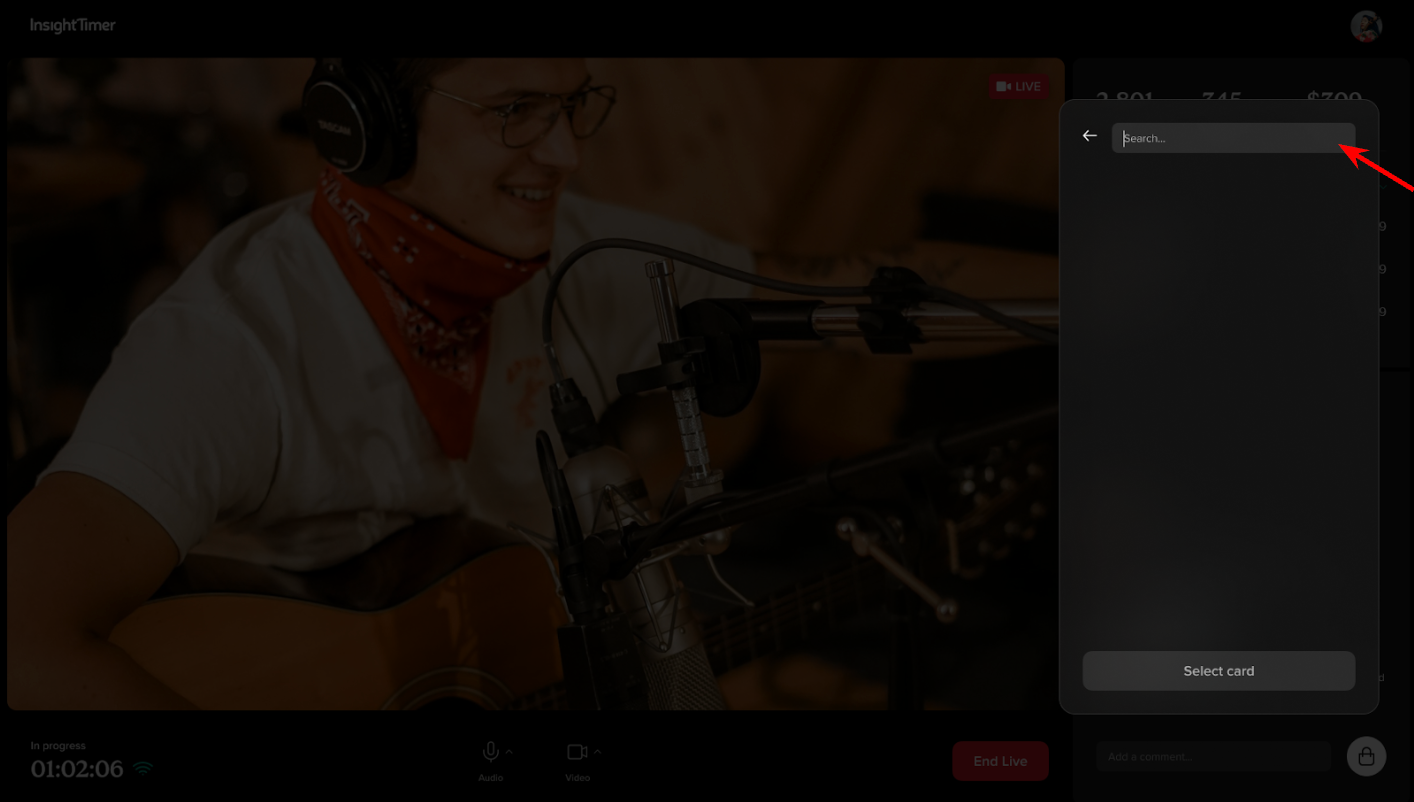
If you didn't add a card in advance, use the search bar at the top right of the Promotional Card selection screen to find and post it during your live session.
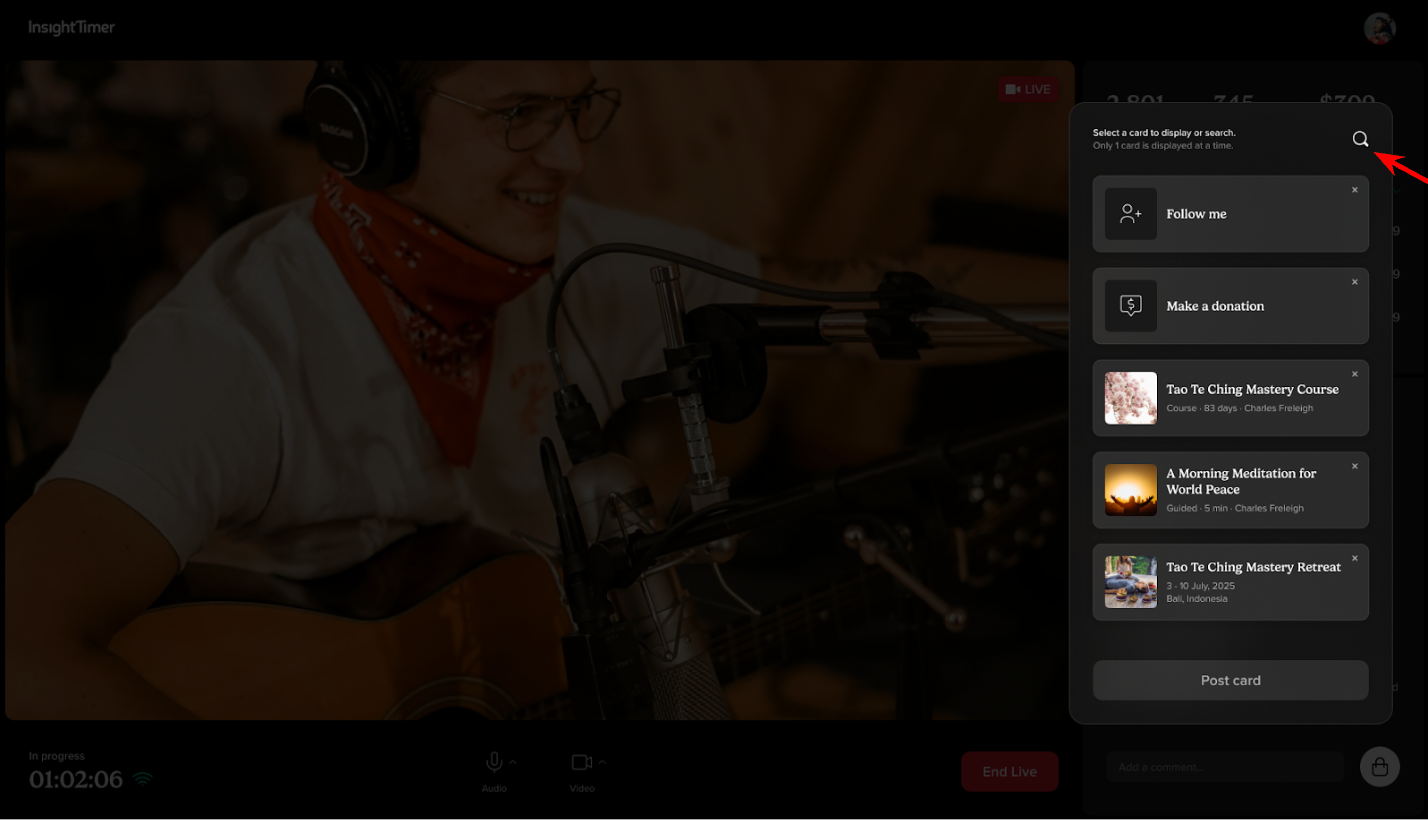
- Click the search bar and type a search term
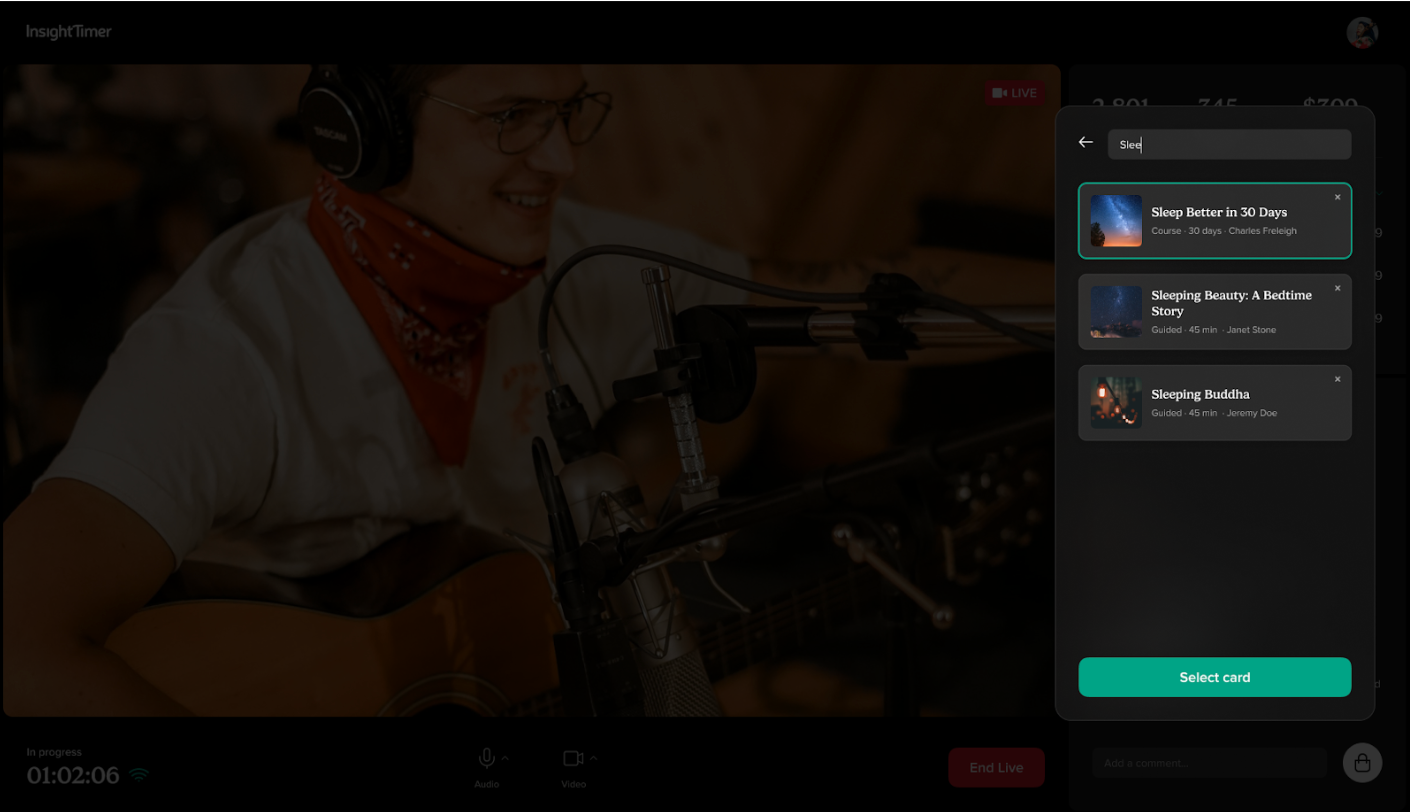
- Select a card from the results, then click Select card
- The card posts immediately to your live chat
Tip: The Promotional Card button is available before you officially start your live event. Test your cards ahead of time to make sure they look good.
Getting started with live events
Haven't hosted a live event yet? Discover everything you need to get started and connect with your community in real time. Learn more about hosting live events here
Get help with promotional cards
If you have any questions or need help setting up your promotional cards, reach out to our teacher support team at publishers@insighttimer.com. We're always happy to help you make the most of this feature.