This guide is for Insight Timer community members who want to update their payment details for their subscription. If you're a teacher looking to update your payout details for revenue received from your work on the platform, please refer to the teacher payment guide instead, which covers different settings.
Update Your Payment Method
Your payment method must be updated through the platform where you originally subscribed. This is because Apple, Google Play, and the Insight Timer website each manage payment information through their own separate systems. Whether you signed up through Apple, Google Play, or directly through our website, you'll need to go back to that same location to make any payment changes. This ensures your information is secure and your subscription continues without interruption.
If You Subscribed via Apple (iTunes / App Store)
Payment details are managed directly through Apple's system, not through the Insight Timer app itself. You'll need to update your payment information in your device settings. Apple handles all billing for app store purchases, so this is where you'll manage your card and payment options.
- Open your iPhone Settings app.
- Tap your Apple ID (your name at the top of the Settings screen).
- Select Payment & Shipping from the menu.
- Update your payment method with your new card information, expiration date, and billing address.
You can also refer to Apple Support for detailed instructions and troubleshooting if you encounter any issues or need additional guidance with the Apple ID payment system.
If You Subscribed via Google Play (Android)
Payment details are managed through Google Play Store, not through the Insight Timer app. Just like with Apple, Google handles all billing independently. Follow these steps to update your payment method on an Android device:
- Open the Google Play Store app on your Android device.
- Tap your profile icon (located in the top-right corner of the screen).
- Select Payments & Subscriptions to access your payment settings.
- Tap Payment Methods to view your saved payment options.
- Update or add your new payment method with your current card details and billing information.
Google Play secures all payment information, so you can trust that your new card details will be safely stored.
If You Subscribed via the Insight Timer Website
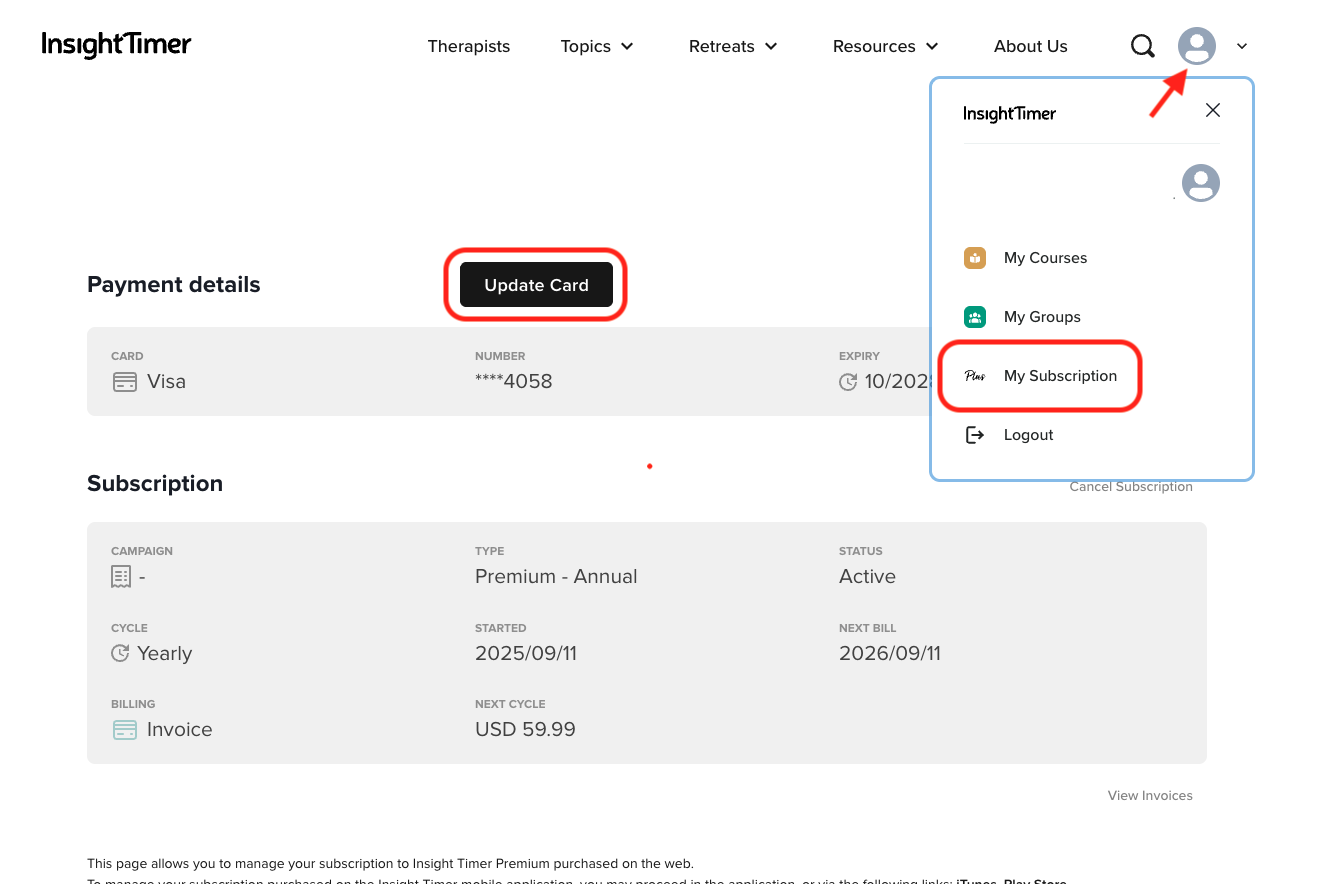
If you purchased your subscription directly through the Insight Timer website rather than through an app store, you can update your payment method through your account settings on the website. This is often the easiest option if you subscribed on your computer, prefer managing everything from a web browser, or want direct control over your payment settings without going through a platform intermediary.
- Go to the Insight Timer website and log in to your account with your email and password.
- Click your Profile icon in the upper-right corner of the page.
- Select My Subscription from the dropdown menu to access your subscription settings.
- Click Update Card to modify or replace your payment information.
- Enter your new payment details under the Payment Information section, including your card number, expiration date, and CVV.
- Click Update Default Payment Card to save your changes and confirm the update has been applied.
Your updated payment method will be used for all future subscription renewals and charges, so you won't have to worry about failed payments due to an expired or invalid card.