
Video trailers are short, portrait-format video clips that appear on your live event pages. They give members a quick preview of what your session offers before they sign up or attend. This guide covers best practices on how to record or upload one.
What is a trailer video?
A trailer is a short, portrait-style video that gives our community a quick, personal preview of your live event. Think of it as a 30-second pitch direct to camera: who this is for, what they'll experience, and why it matters. It appears on your live event page, so a compelling trailer can significantly boost registrations.
Quick tips for a successful trailer
You likely have five seconds to get someone excited about joining your event.
- Lead with the hook. Skip "Hi, my name is…” Open with the problem your session solves: "If you keep waking at 3 am, this is for you."
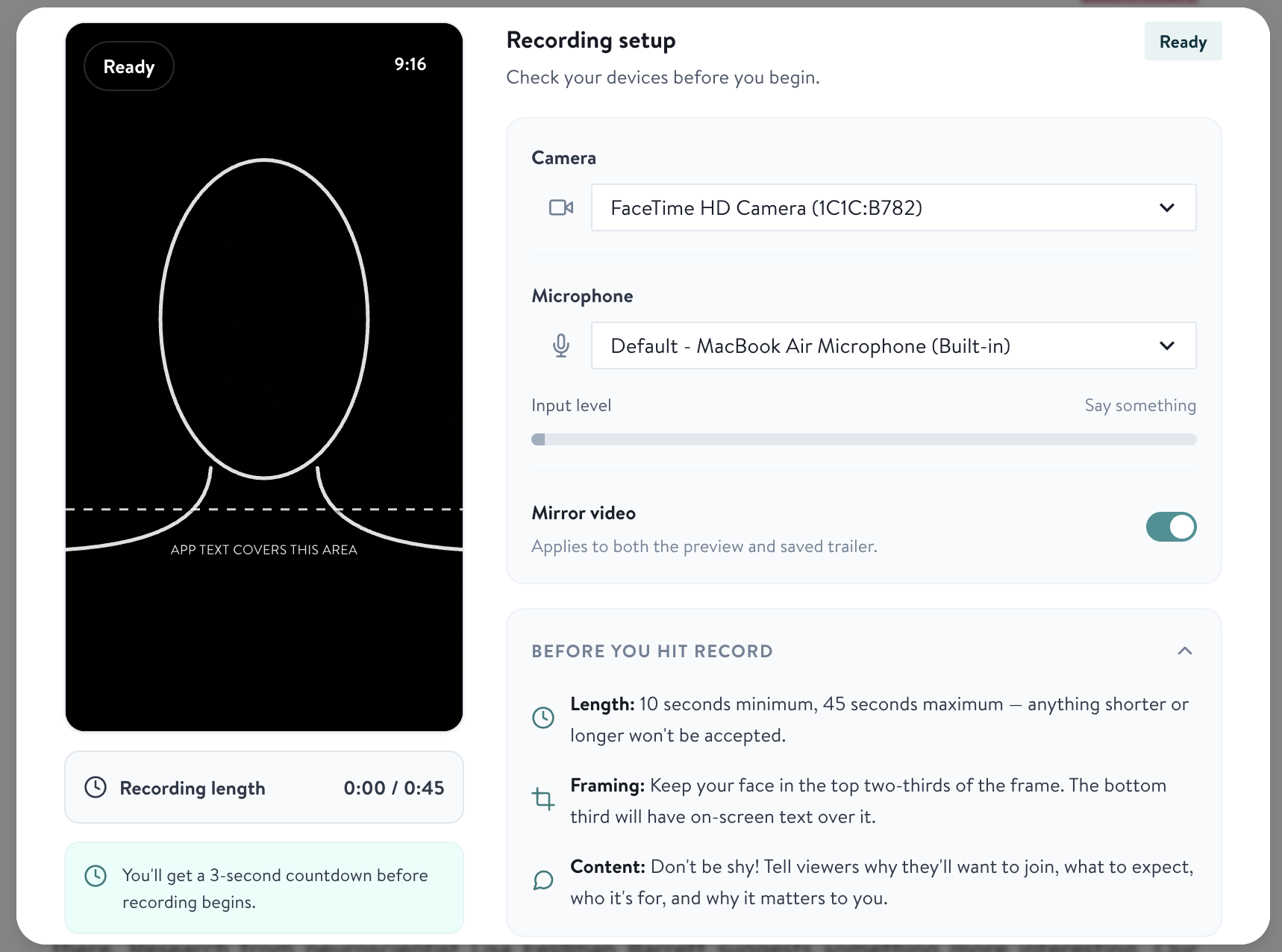
- Keep your entire face in the top half of the frame. Prop your phone or camera portrait-style and at eye level. Speak directly to camera and try your best to sound natural.
- Say who it's for and what they'll walk away with. One sentence each. If you try to speak to everyone, you'll reach no one.
- One idea only. Aim for 20 seconds. A single clear promise beats a summary of everything you cover.
- Face your light - soft natural light from a window is best.
- End with the invitation. "Join me live!"
Time-Sensitive References
Keep in mind that trailers may be displayed for an extended period before your event. To avoid confusion for viewers who may see your trailer weeks after it was recorded, we recommend avoiding the following:
- Verbal mentions of specific dates, times, or time zones — if timing must be mentioned, include the full date and time zone (e.g., "Join me Thursday, August 13 at 4pm PT")
- Countdown language such as "starting in two days" or "this week"
- References to seasons, holidays, or current events, unless the event itself is seasonal
Do I have to appear on camera?
We strongly encourage you to appear on-camera, speaking directly to your audience; it's one of the fastest ways to build trust and help build a connection. We understand that isn't always possible, though, so it's not mandatory. Voiceover trailers are also accepted, as long as the visuals (b-roll) clearly support the offering you're promoting.
If you'd rather not show your face on camera, here are some options:
- Slow, steady footage of nature or your practice space. Gentle movement reads better than a static shot.
- Hands only: turning pages, holding mala beads, resting in a mudra, pouring tea, journaling
- A wide or side-on shot of you practicing, with your face out of frame
- Abstract texture and light: water, fabric, shadows moving across a wall, sunrise through a curtain
- A lit candle, a plant swaying in a breeze, curtains billowing in a window, a simple altar or practice space
- Keep it calm and consistent with your live event's tone. Avoid busy cuts, stock-looking montages, or anything that competes with your voice.
Prefer not to film at all? Free, royalty-free stock footage works just as well. Sites like Pexels and Pixabay have plenty of nature and lifestyle clips you can drop straight in, often with more polish than a phone recording.
Where do I add my trailer?
You can add a trailer to:
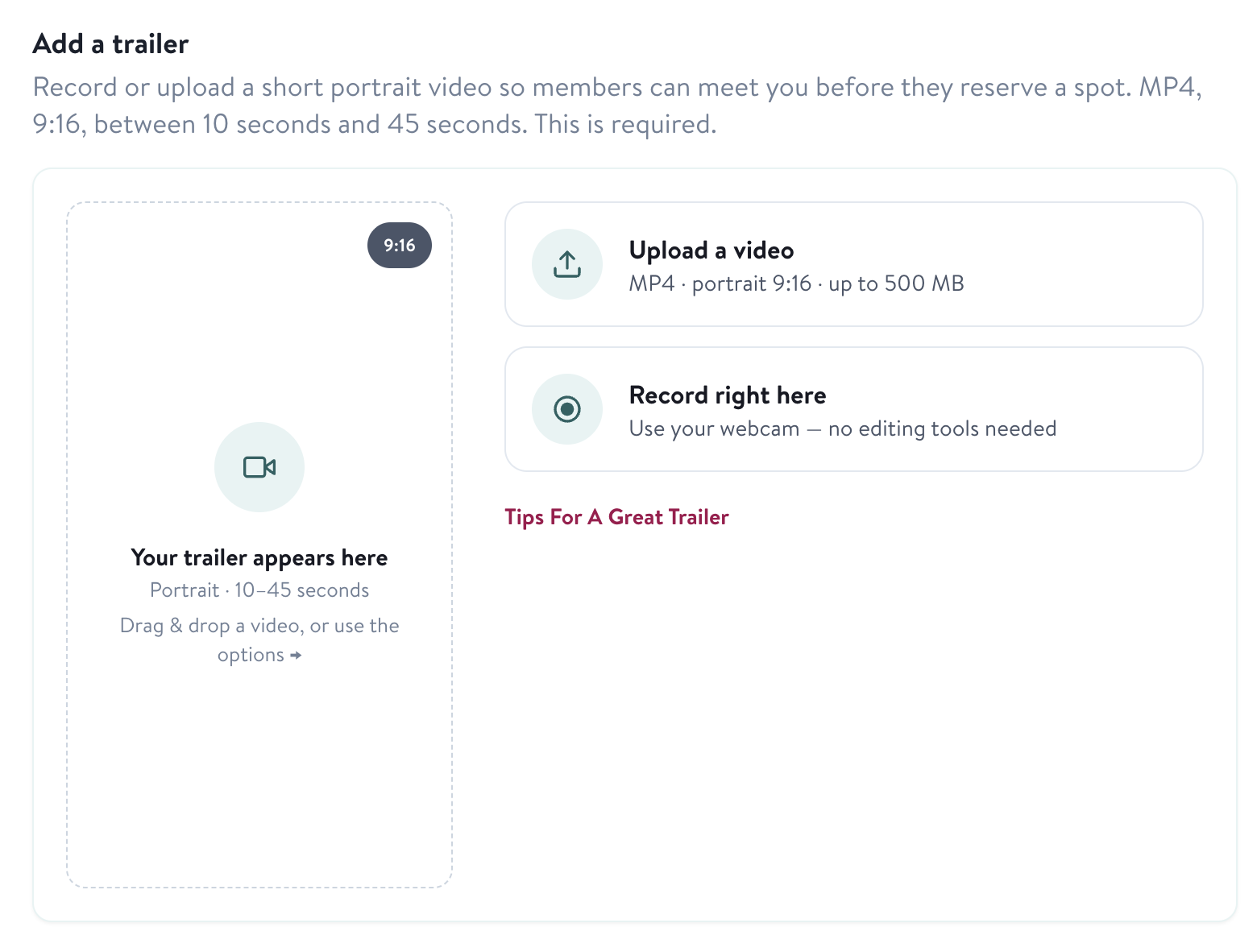
- New live events — uploading a video trailer is mandatory when creating a new live event
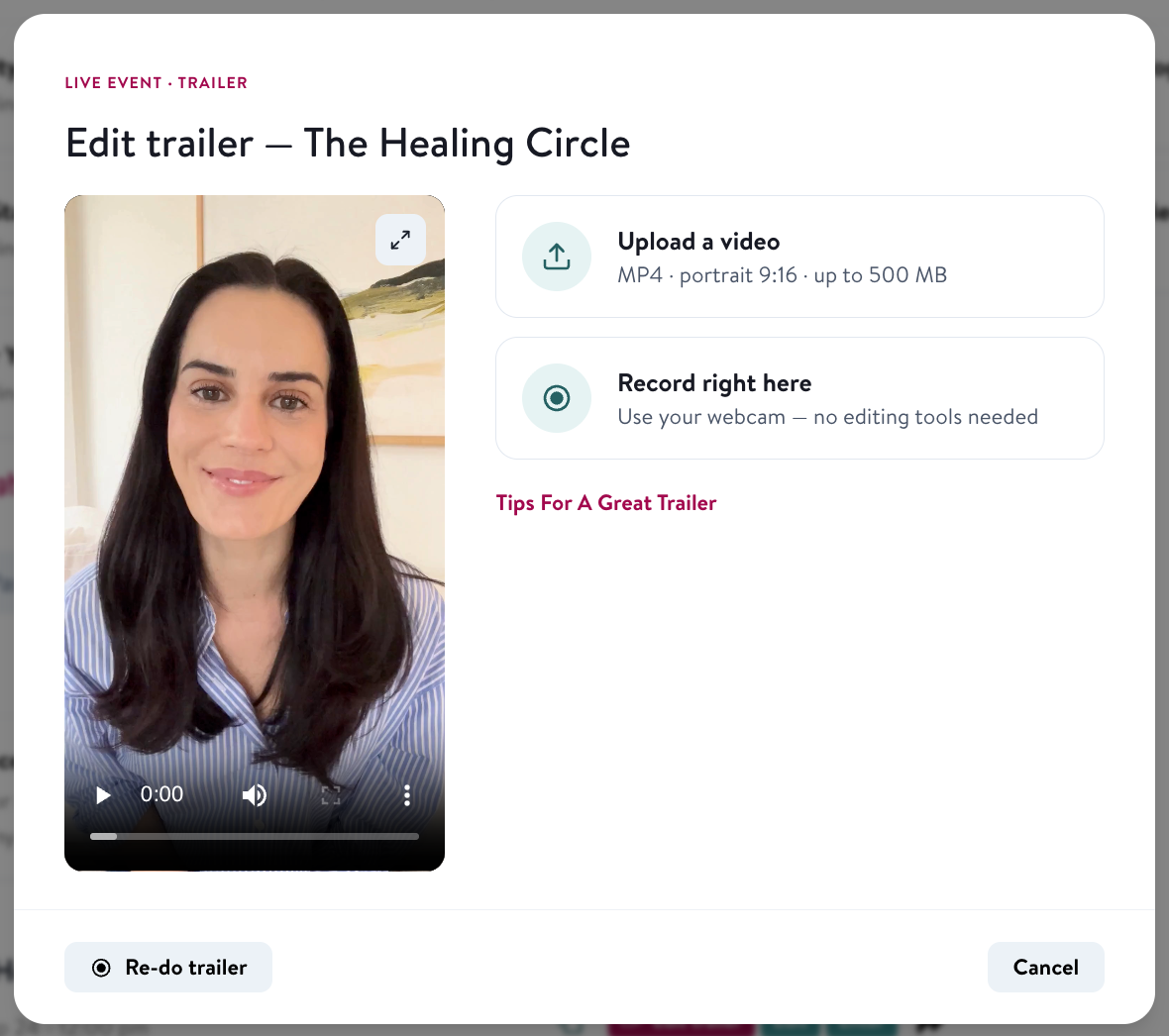
- Published or approved live events — you can add or update a trailer on any existing live event, even after it has been approved
Is a trailer mandatory?
Yes. A video trailer is required for every new live event. Our team reviews each trailer before your event goes live. If yours doesn't meet the requirements, we'll get in touch with feedback so you can resubmit and get your live event published.
How do I add a trailer?
There are currently two ways:
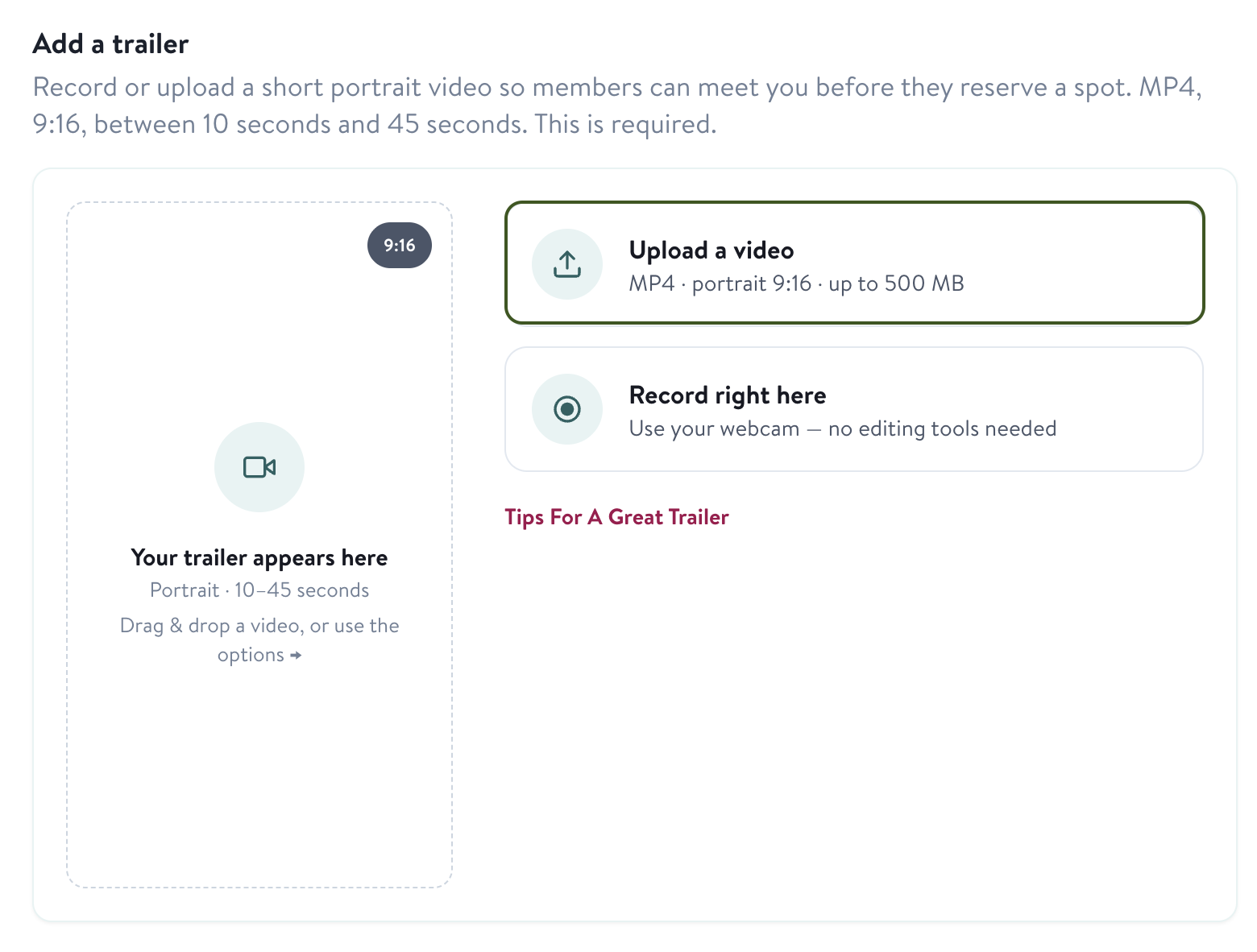
Option 1 — Upload a file: Select "Upload video" and choose an MP4 file from your device. This is the best option if you have a pre-recorded clip ready to go.
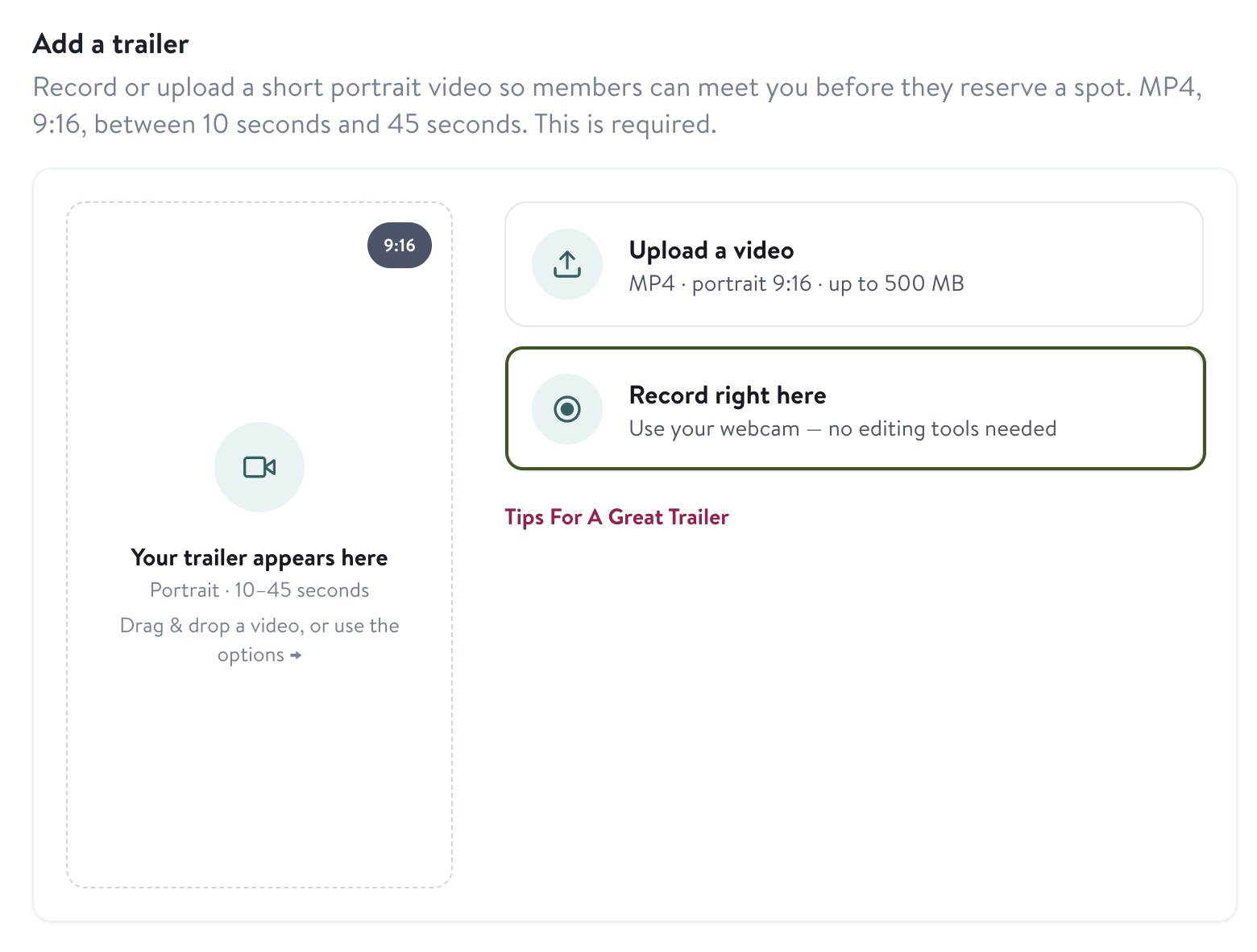
Option 2 — Record in your browser: Select "Record now" to use your webcam and record directly inside the teacher dashboard. No third-party app required. Read the tips below before you hit record.
Technical requirements
Requirements | Spec |
|---|---|
Format | MP4 |
Orientation | Portrait (vertical) |
Ideal Length | 20-30 seconds |
Clean Video | There cannot be on-screen graphics or text |
Duration | Minimum: 10 seconds Maximum: 45 seconds |
Color & Visual Style
Keep your video looking natural and consistent. Use true-to-life colors with even exposure throughout — avoid heavy filters, stylized grading, oversaturated or unnatural tones, black and white, and any visual effects, beauty filters, or background replacement.
AI Usage Guidelines
AI tools for editing and production support are welcome — trimming, color correction, and noise reduction are all fine. However, the following are not permitted:
- AI-generated narration or voices
- Voice cloning, altering, or synthesis of any kind
- Fully or partly AI-generated video
- AI avatars, digital doubles, or generated backgrounds
- Any use of AI that removes or replaces the teacher's human presence
Can I update my trailer after publishing?
Yes. You can add, replace, or update a trailer on any live event or course at any time, including content that has already been approved and is live on the platform.
Once you have added it, please resubmit it for approval.
Additional questions
Can I record a trailer on my phone and upload it? Yes. Record in portrait mode on your phone, then export and upload the MP4 file from your device.
My live event is already approved. Can I still add a trailer? Yes. You can add or update a trailer on any published live event, even after it has been approved. Once you've submitted your new trailer, your event will stay published as is while we review it — we just need to confirm it meets our guidelines before it goes public.
Questions? Reach out through the teacher chat on your dashboard or email us at publishers@insighttimer.com.