Welcome
Login
Open navigation

How to Host A Great Live Event

Host a compelling live event on Insight Timer

Live events are one of the most engaging and rewarding ways to connect directly with our global community. Whether you're leading a guided meditation, yoga class, breathwork session, talk, music performance, sound bath, or any other real-time teaching, these practices provide a unique opportunity to deepen your connection with students and expand your reach. Here's a comprehensive guide to everything you need to know to set up and deliver a professional, compelling live session that keeps people coming back and builds your teaching community.


Before your event


Get the word out consistently through multiple channels

Consistently promoting your live sessions across multiple platforms makes an enormous difference in attendance and builds momentum over time. Share the link to your live event across your social media accounts (Instagram, Facebook, Twitter, LinkedIn, TikTok, etc.), your website or blog, your email newsletter, and anywhere your audience gathers online. Encourage your followers and existing community members to share the link with their networks. The more people know about your event, the more will show up — and word-of-mouth promotion amplifies your reach exponentially.


Share via the teacher dashboard:

  • Log in with your teacher account on the teacher dashboard.

  • Click Live Events in the left navigation panel to see all your scheduled events.
  • Scroll down to view all your upcoming events and find the one you want to promote.
  • Click the arrow button next to the event you want to promote. A pop-up window will appear with sharing options for multiple platforms (Facebook, Twitter, direct link, etc.). You can choose your preferred platform or copy the link to paste anywhere. Each platform's sharing optimizes the preview and description.


Share via the mobile app

  • Log in with your teacher account on the Insight Timer mobile app (make sure you're running the latest version for the best stability and features).
  • Navigate to your Profile. Your scheduled live events are displayed prominently there so you can share them anytime.
  • Select the live event you want to share and tap the share icon in the top right corner of the event card.


Test your internet connection thoroughly before the day

Nothing disrupts a live stream worse than poor internet connection — glitches, pauses, freezing, and complete drop-outs ruin the experience for your audience and damage your professional reputation. Before your scheduled event, test your connection thoroughly using www.speedtest.net. Aim for at least 10 Mbps download and 7 Mbps upload speed as a minimum baseline. Ideally, you want much faster speeds — 50 Mbps download and 20 Mbps upload or higher — to ensure rock-solid stability and handle any unexpected network fluctuations. If your internet connection at your current location is weak, consider finding a different location with better Wi-Fi (a coffee shop, library, co-working space, or friend's location), or try switching between Wi-Fi and cellular data to see which is more stable.


Check and prepare your equipment in advance

For a seamless, professional live event, you need to have the right equipment ready and tested. Prepare everything ahead of time so you're not scrambling on the day of your event.


Must-have equipment:

  • A computer (laptop or desktop) with the Google Chrome web browser installed. Chrome is the most stable, supported option for live streaming on Insight Timer — we recommend always using it for broadcasting.


Optional but highly recommended equipment to improve quality:

  • Headphones (helps you monitor your own audio output and avoid feedback loops)
  • External webcam with HD resolution (provides better video quality than most built-in laptop cameras)
  • External USB microphone (delivers clearer, more professional-sounding audio than laptop microphones)
  • Audio amplifier or mixer for connecting external audio equipment (useful if you're playing music or connecting other audio sources)


If you're planning to teach regularly, investing in a decent external microphone and webcam significantly improves how professional your broadcasts sound and look to your audience.


Plan a clear curriculum and detailed session outline

A compelling title and description get people interested and bring them to your event, but a well-planned, thoughtfully-structured session keeps them engaged and coming back for more. Spend real time designing your session with a clear vision of what you'll teach, how you'll structure it, and what progression you'll take students through. Create detailed notes that you can reference while looking at the camera — use a physical notepad or tablet propped up next to your monitor. These notes help you stay on track, deliver your best teaching, and maintain a natural flow even if you feel nervous. Insight Timer has comprehensive content ideas and best practices to inspire your session design and help you structure engaging, meaningful live events that serve your community.


Set the scene and optimize your broadcast environment

Once you've secured a location with good internet connection, spend time thoughtfully planning the visual and sensory experience your audience will have. Consider every element that appears on camera and affects the atmosphere. Think about lighting (natural light is usually best, but test it), your background (should it be minimal and professional, or warm and personal?), the temperature and comfort of your space, the colors you'll wear, and how you'll position yourself in the frame. These details matter because they all communicate something to your audience and create the right atmosphere for their practice. A thoughtfully curated environment makes your broadcast look more professional, more intentional, and more valuable.


Schedule events consistently in advance to build anticipation

We recommend scheduling at least two live sessions in advance — ideally more. This gives you time to promote them actively and builds anticipation in the community. When community members know you teach regularly on specific days and times, they're more likely to plan to attend and build you into their routine. Regular, scheduled events help people know when to expect you, which encourages consistent attendance, builds loyalty, and helps you grow a regular audience of committed followers.


On the day of your live event


Follow these core steps in the right order to ensure your live stream launches smoothly to your audience and creates the professional impression you want:


  1. Open your browser and log in to the teacher dashboard using Google Chrome (this is critical for compatibility and stability).
  2. Navigate to the Live Event tab in the left navigation panel to see all your events.
  3. Select the correct event you're hosting today under the Upcoming section — double-check you've selected the right event before proceeding.
  4. Watch the countdown timer on your event page. When it reaches zero, the Start Live button will appear. Click it and your audience will immediately be able to see and hear you broadcasting.


These four steps are the essentials for going live. Follow these additional professional tips for an even smoother, more polished experience and to troubleshoot potential issues before they happen.


Enter the stream 10-15 minutes early for a thorough tech test

Log in to your event well before your scheduled start time — we recommend 10-15 minutes early — to test your camera, microphone, lighting, and framing. This gives you ample time to troubleshoot any issues, make adjustments, and feel confident before your audience arrives. Here's how to do a thorough technical check:


  • Click on your scheduled live event link from the teacher dashboard to enter the broadcast interface.
  • Click Enter stream early to access the full broadcasting setup before you officially go live.
  • Grant Insight Timer permission to access your camera and microphone when your browser requests it.
  • To test your audio before broadcasting to your audience, toggle on Playback my microphone and speak naturally into your microphone. You'll hear your own voice played back and see the microphone volume meter move in real-time, confirming your audio is working properly and at the right levels. If you don't see this option initially, click the sidetone icon (ear/speaker icon) next to the Start Live button. Critical: Toggle off the sidetone/playback before you actually go live — leaving it on causes distracting echo feedback.


Check your internet connection one final time right before going live

Internet speeds can fluctuate throughout the day based on network traffic and other factors, so test your connection again right before you go live at www.speedtest.net. You're looking for at least 10 Mbps download and 7 Mbps upload speed as your minimum acceptable threshold — ideally much higher.


Protect and preserve your available bandwidth

On the day of your event, take steps to ensure all available bandwidth is dedicated to your broadcast. Turn off automatic app updates on your computer (they consume bandwidth in the background). Disable file-syncing applications like Dropbox, Google Drive, OneDrive, and similar services that continuously sync files to the cloud. If other people share your Wi-Fi network at home or in your office, ask them to pause activities that use lots of bandwidth while you're broadcasting — such as video streaming, large file downloads or uploads, video conferencing, or online gaming. Every bit of bandwidth matters for a stable broadcast.


Charge your devices fully and keep them plugged in

Video streaming drains battery incredibly quickly on computers and mobile devices. Make sure your primary broadcasting device is fully charged. Even better — and we highly recommend this — plug your device into power during your entire broadcast session. This eliminates any risk of running out of battery mid-stream and ensures consistent power delivery to your processor and internet hardware.


Use only one device for the entire broadcast

Host your live event from only one device. Using multiple devices simultaneously causes serious technical problems because the video and audio feeds can switch between sources mid-broadcast, creating a jarring, unprofessional experience for viewers. Insight Timer's platform supports and outputs only one video source and one audio source at a time, so switching between devices creates discontinuity and poor quality. Choose your best device and stick with it.


Add background music to set atmosphere and consider virtual backgrounds

Enhance your session atmosphere by adding background music that supports your teaching style and the mood or energy you want to create for your students. Ambient music, nature sounds, or instrumental pieces can deeply enhance a meditation experience. Here's how to integrate music and connect computer audio to your live event. 


You can also add a virtual background to complement your session aesthetic and create visual interest. While virtual backgrounds aren't natively built into our platform, you can add one using third-party software. Additionally, if you're co-teaching or bringing in guest presenters, here's how to broadcast a group video call feed from Zoom or similar platforms.


Consider landscape mode for optimal viewing experience, especially for yoga

The default broadcast interface is in portrait (vertical) mode, but you can switch to landscape (horizontal) mode by clicking the Switch To Landscape View prompt. Landscape mode is especially helpful for yoga teachers and movement-based practices, as it gives viewers a wider, more immersive view of your body, positioning, and space. The landscape format feels more natural for watching instructional movement content and creates a more professional, cinematic broadcast experience.


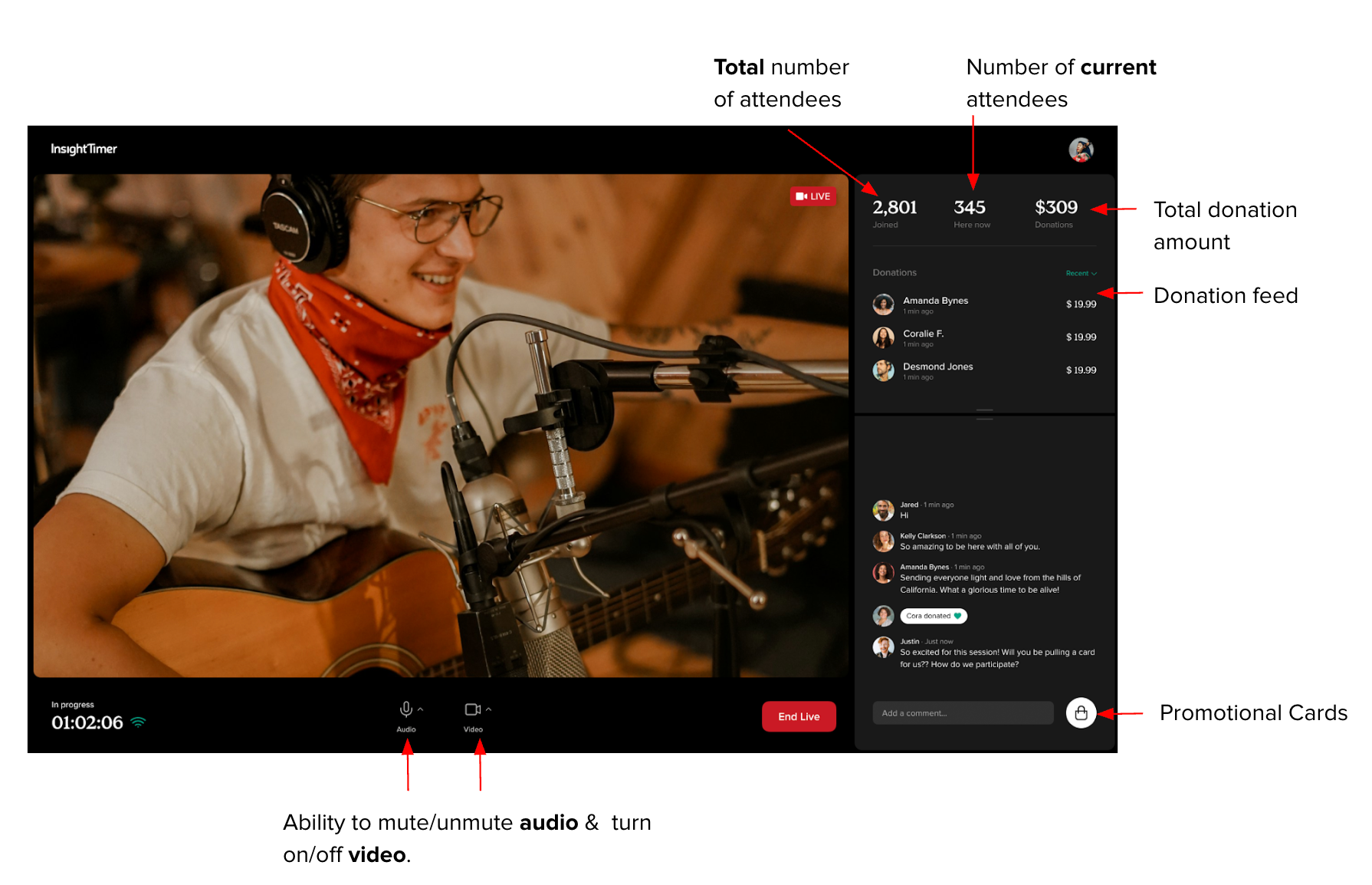
Once you switch to landscape mode, here's exactly how it appears to your viewers during the live broadcast — note the wider field of view:


Engage warmly with the global community from the very start

Welcome everyone warmly and authentically at the start of your session and acknowledge the incredible global community joining you from around the world. Remember, Insight Timer's community is truly worldwide and spans every continent — expect people to join you from many different cities, countries, continents, and time zones. A warm, genuine welcome at the beginning sets an inclusive, welcoming tone for the entire session and helps people feel like they're part of a real community, not just consuming content.


Ask for donations strategically at natural moments in your session

We recommend asking for donations 2-3 times during your session at natural, organic moments — perhaps after a particularly meaningful section, or near the beginning and end. When people do donate, acknowledge their generosity specifically, warmly, and genuinely. Help viewers understand why donations matter: donations help keep the live session free and accessible for everyone to join, ensuring that meditation and mindfulness practices are available to people regardless of their financial means. When people understand the purpose and impact of their donation, they're more likely to give.


Promote your other Insight Timer content authentically

Use your live session as a natural opportunity to introduce your other offerings on Insight Timer. Talk genuinely about your guided meditations, courses, and premium tracks that viewers can explore. Encourage attendees to follow you in the app so they stay connected to your work and don't miss your future content. Many people who attend your live events are interested in exploring more of your teaching — make it easy and obvious for them to find your other content. Mention specific courses or tracks that would complement what you just taught.


Follow all community guidelines to maintain trust and integrity

All live events must follow our Guidelines For Teachers — these are non-negotiable community standards. This means you cannot promote external products, services, websites, books, courses, retreats, or anything outside of Insight Timer during your broadcast. These guidelines ensure the community remains focused on the practices and teachings available on our platform, and maintains the integrity that our community depends on. For the complete set of live event rules, guidelines, and best practices, review our detailed instructions here before your first broadcast.


Did you find it helpful? Yes No

Send feedback
Sorry we couldn't be helpful. Help us improve this article with your feedback.


Last updated: 2026-03-18 15:36:09 +0800