
Your teacher profile is how you present yourself to the Insight Timer community. It's where you showcase your expertise, teaching style, and offerings. You can update and personalize your profile information to better reflect who you are and what you teach. A strong, well-maintained profile helps you attract more students and build deeper connections with your community.
Where to edit your profile
Profile editing is only available through a web browser — you can't edit your full profile from the mobile app. Here's how to access your profile settings:
- Open a web browser on your computer
- Go to the Teacher Dashboard at teacher.insighttimer.com
- Log in with your teacher account details if not already logged in
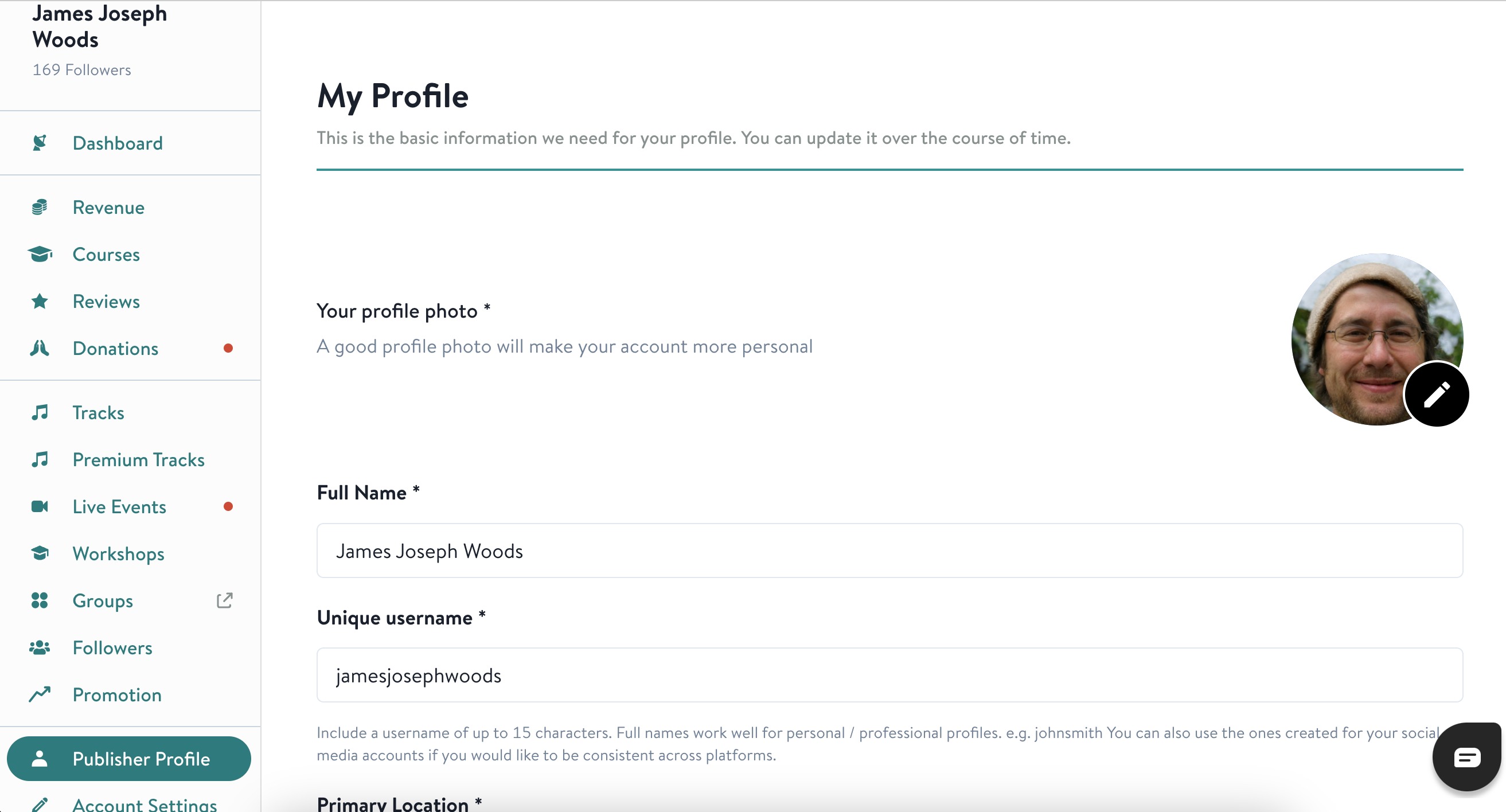
- In the left navigation pane, click on "Publisher Profile" (your teacher profile)
- You'll now be in edit mode for your profile
What you can edit in your profile
Once in your Publisher Profile editor, you can update a wide range of information about yourself and your teaching:
- Your name and professional title or credentials
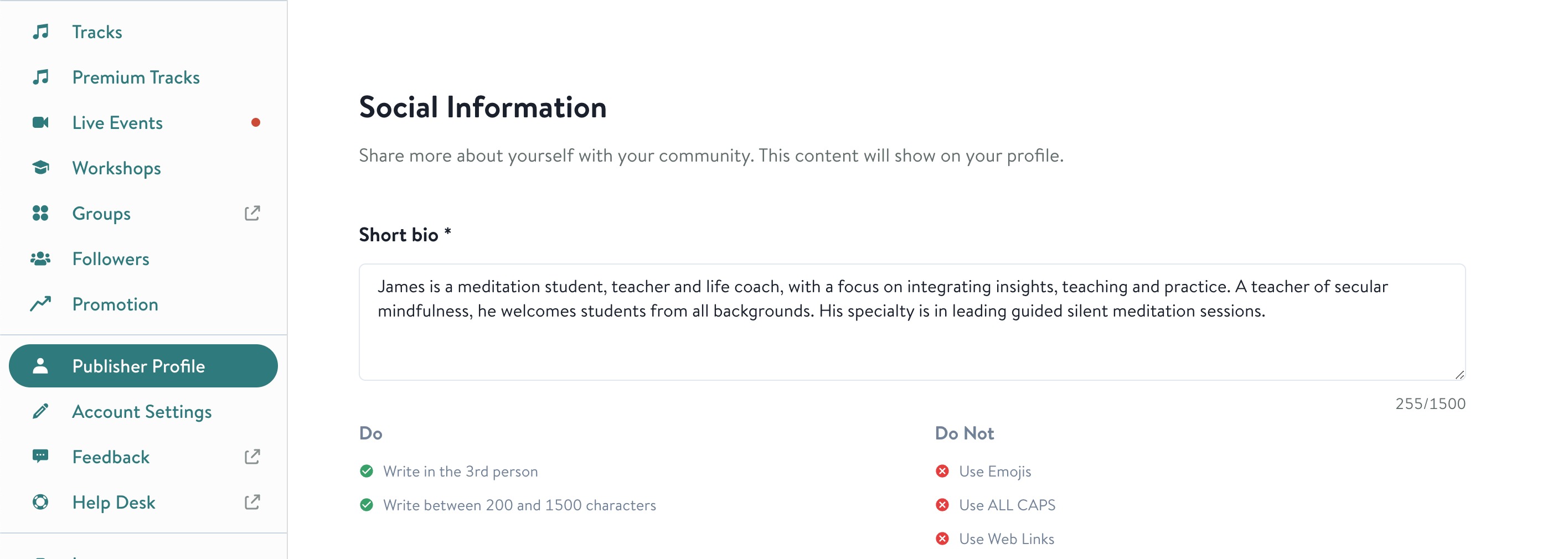
- Your bio and teaching philosophy statement
- Your areas of expertise (meditation, mindfulness, yoga, breathwork, sleep, anxiety, etc.)
- Your profile photo and background image
- Links to your social media or personal website
- Your certifications, qualifications, and training background
- Languages you teach in
- Any other relevant information about your teaching practice
Important requirements for your profile
Before saving, make sure everything complies with our Teacher Profile Requirements. These guidelines keep our community safe, authentic, and focused on quality teaching. Your profile should accurately represent who you are and what you offer.
Profile guidelines include:
- Keep information accurate and truthful — don't misrepresent your experience or qualifications
- Don't promote external services, products, or links (focus on your Insight Timer teaching)
- Follow our community standards for language and imagery — keep content respectful
- Provide relevant, helpful information for community members looking for teachers
Save your changes
Once you've made all edits and verified everything is accurate and follows our requirements:
- Review your changes one more time to make sure everything looks good
- Click the Save button to publish your updated profile
- Your profile updates immediately and is visible to community members
Learn more about managing your teacher account
For more detailed information about managing your teacher account, including payment settings, content management, analytics, and other administrative tasks, check out our comprehensive teacher guides.
Need help with your profile?
If you have questions about what you can include, need clarification on requirements, or want suggestions for making your profile more engaging, reach out to our teacher support team at publishers@insighttimer.com. We're here to help you create a profile that represents you well and attracts the right community members to your teaching.