Applying for and Creating Live Events on Insight Timer
Live events are one of the most powerful and rewarding ways to connect with our global community of 30 million meditation and mindfulness practitioners. They're an exceptional opportunity to increase your visibility on our health platform, interact directly with community members, earn additional donations, and grow your audience. Whether you're a meditation teacher, yoga instructor, therapist, or other wellness professional, live events let you share your expertise in real time with people around the world who are seeking your unique voice.
Before You Apply: What You Need to Know
Before you can host a live event on Insight Timer, there are a few requirements you'll need to meet. These are in place to help ensure a positive experience for both you and the community members who attend your sessions. They also help us maintain the quality and integrity of our live events offerings.
Here's what you need to have in place:
- Published Content and Rating: Except for yoga teachers (who have a separate pathway), you'll need at least two (2) published tracks on Insight Timer with an average rating of 4.5 stars or higher. This demonstrates that you have a track record of creating quality content that resonates with our community.
- Profile Photo Compliance: Your Live Event cover image is automatically pulled from your Teacher Profile photo, so make sure your profile image meets all of our guidelines. Review the Teacher Profile Requirements to ensure your photo is approved and appropriate for our community.
- Application Submission: You'll need to complete and submit the Live Events application form, which you can find on the Live Events tab in your Teacher Dashboard. This form helps us learn more about you and your teaching philosophy.
Taking care of these requirements upfront will make your approval process smooth and efficient. It's worth taking the time to double-check everything before you apply.
How to Apply for Live Events
The application process is straightforward and typically takes just a few minutes. Our Onboarding Team reviews applications regularly and will reach out to you within 10 days to discuss next steps. Here's how to get started.
Step 1: Log In to the Teacher Dashboard
First, you'll need to access your Teacher Dashboard, which is where you manage all of your published content and live events on Insight Timer. We recommend using Google Chrome for the best experience and optimal performance. We currently don't support Safari, Internet Explorer, Firefox, or other browsers—Chrome provides the most reliable interface for submitting your application.
You can log in to your Teacher Dashboard here. If you don't have a teacher account yet, you'll need to create one first.
Step 2: Click on the Live Events Tab
Once you're logged in, look for the Live Events tab. If you're applying for the first time, you'll see a page that offers you a choice of which type of live events you'd like to teach. Here's what that looks like:

You'll have two main options: applying for Live Meditations or applying for Live Yoga events. Live Meditations include guided meditations, music sessions, talks, wellness seminars, and other spoken word content that helps people with meditation, mindfulness, relaxation, sleep, and overall emotional health. Live Yoga includes all types of yoga classes and yoga nidra sessions.
For Live Meditations: Use this direct link to fill out the Live Meditations application form.
For Live Yoga: Use this link to apply for Live Yoga events. You may also want to review this detailed guide about becoming a yoga teacher on Insight Timer for additional information specific to yoga instructors.
Both links will take you to a Google Form. You'll be asked to fill in information about yourself, your teaching experience, and what types of sessions you'd like to offer. You'll need to sign in with your Google account to access and submit the form—this is a standard security measure to ensure we receive complete applications from real teachers.
Once you submit your application, our Onboarding Team will review it carefully. You can expect to hear from us within 10 days with either your approval or a request for additional information. We'll reach out via email and walk you through the next steps so you can start creating your live events.
Creating a Live Event Proposal
Congratulations! Once you've been approved to host live events, you're ready to create your first proposal. Through your Teacher Dashboard, you'll be able to design, schedule, and submit live events for our team to review and publish. Every live event proposal that you submit goes through an approval process to ensure it meets our standards and provides real value to our community. We encourage you to familiarize yourself with our Rules and Guidelines for Live Events before creating your first proposal—this will help you get approved quickly and avoid any revision requests.
Step 1: Log In to the Teacher Dashboard Again
Just as before, you'll start by logging into your Teacher Dashboard. Use Google Chrome for the best experience—we don't currently support Safari, Internet Explorer, Firefox, or other browsers. Access your Teacher Dashboard here.
Once you're approved to host live events, you'll see some new options and tabs available to you in the dashboard.
Step 2: Click on the Live Events Tab
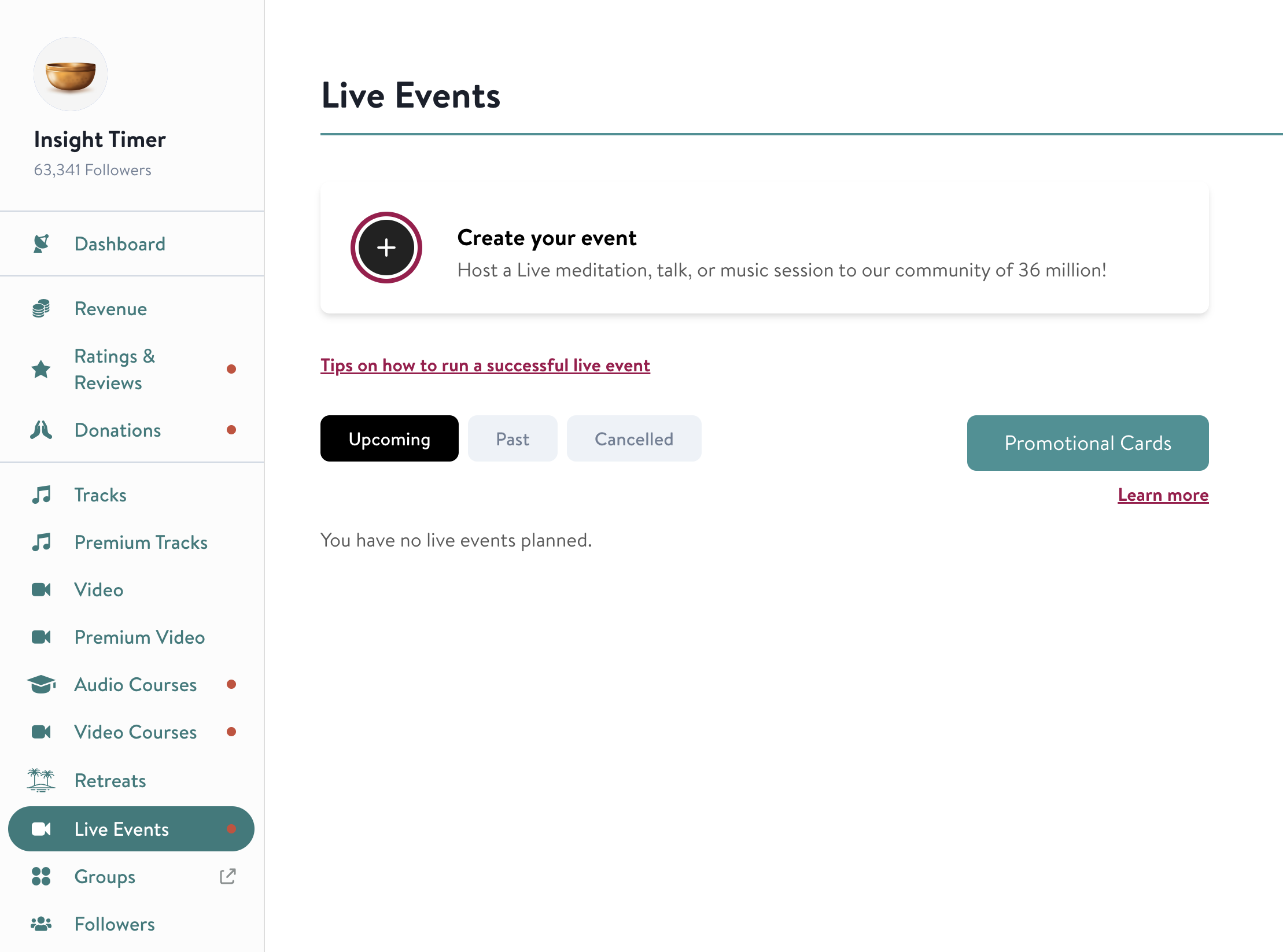
In your Teacher Dashboard, look at the left side panel. You'll see the Live Events tab there—it's the place where you manage all of your live event proposals. Here's what the tab looks like in your dashboard:

If you don't see the Live Events tab in your dashboard immediately after receiving your approval, it may take a short time to appear in your account. If it's been more than a few hours and you still don't see it, please reach out to our support team at publishers@insighttimer.com. They can help troubleshoot any access issues and get you set up right away.
Step 3: Click the "Create Your Event" Button
Once you've clicked on the Live Events tab, you'll see a button labeled "Create Your Event." Clicking this button will take you to a dedicated event creation form where you'll enter all the specific details about your upcoming live event.
The form has multiple pages that walk you through the process step by step, making it easy to provide all the necessary information.
Here are the first pages of the event creation form:


Fill in Your Event Date, Time, and Duration
On the next page of the form, you'll need to enter the specific date, time, and duration for your live event. This information is crucial because it tells community members exactly when your session will take place, allowing them to plan accordingly and ensure they can attend.
You have flexibility in how you schedule your event, but there is one important limit: the maximum duration for any live event is 2 hours. This helps keep sessions focused and manageable while still giving you plenty of time to deliver meaningful content and interact with attendees.
Here's what the scheduling page looks like:


Important Scheduling Guideline: Please schedule your event at least 24 hours in advance. This is important for several reasons. It gives our team enough time to review and publish your event proposal, and it gives the community adequate notice so they can see your event, mark it on their calendar, and plan to attend. This advance notice typically leads to higher attendance and more meaningful interaction. The system will not allow you to schedule an event with less than 24 hours' notice, so plan ahead and submit your proposals in advance when possible.
Select Your Event's Origin, Practice Type, and Benefits
On page 3 of the event creation form, you'll specify important categorization details that help community members discover your event. You'll be able to choose the origin of your teaching (such as the meditation or yoga tradition you practice), the primary practice type (such as guided meditation, music meditation, yoga, etc.), and the main benefits that attendees can expect from your session (such as stress relief, better sleep, emotional balance, anxiety reduction, and more).
To see the complete list of available benefits, click the "See more" button—this will display the full range of emotional health and wellness benefits you can highlight for your event. Selecting the right benefits helps match your session with community members who are looking for exactly what you offer.

Step 4: Review the Terms, Check the Checkbox, and Click "Agree"
Before your live event proposal is submitted for approval, you'll be asked to read and agree to our terms. This is a standard step that ensures you understand our policies and agree to follow our guidelines. Take time to read through the terms carefully—they explain important rules about what content is appropriate, how to conduct yourself during your live session, and what we expect from our teachers.
Once you've read the terms, check the checkbox to confirm that you agree, then click the "Agree" button to proceed with your submission.

Share Your Event to Social Media and Email (Optional)
Once you submit your event proposal, a confirmation pop-up will appear on your screen. This is a great moment to start promoting your upcoming live event. You'll see a share icon that you can use to share your event directly to social media platforms like Facebook, Instagram, and Twitter, or to email to your list of students and followers. Getting the word out early helps build excitement and encourages community members to register and attend your session.
After you've shared (or if you prefer to skip this step), you can click the close button to finish the submission process.
Your Event Appears in the Upcoming Section
Once you've submitted your live event proposal, it will appear in the "Upcoming" section of your Live Event page in the Teacher Dashboard. This is where you can see all of your scheduled events and track their status.

To ensure that your events get reviewed and published on time, we kindly ask that you submit them well in advance.
We typically need about 2 hours to process and review each proposal after you submit it. During this time, our team reads through your event details, checks that everything aligns with our guidelines, and approves it for publication.
Once your event is approved, it will become visible to the community in several places: on our website at www.insighttimer.com/live, in the Live Events section of the Insight Timer mobile app, and on your teacher profile. This gives maximum visibility to your session and helps you attract attendees.
How to Duplicate a Live Event (Quick Template Feature)
Here's a helpful time-saving feature that many of our teachers love: you can duplicate an existing live event and use it as a template for your next one. This is particularly useful if you're planning to teach similar sessions regularly or want to host the same class at different times. Instead of filling out the entire form again from scratch, you can copy all the details from a previous event and just update the date, time, and any other information that's different for the new session.
Step 1: Go to the Live Events Tab
In your Teacher Dashboard, click on the Live Events tab on the left side panel. This takes you to your live events management area where you can see all of your current and past events.
Step 2: Click the Duplicate Icon Next to Your Event
Look through your list of events and find the one you'd like to use as a template. Next to that event, you'll see a duplicate icon. Click it to create a copy of that event with all the same details.

Step 3: Enter the Details for Your New Event
The system will take you to the event creation form pre-filled with all the information from your original event. This includes the title, description, origin, practice type, and benefits. Now you'll need to update the details that are different for this new session. Most importantly, you'll want to change the date and time to reflect when this new event will take place.

Step 4: Continue Editing and Clean Up the Title
As you go through the form, update all the relevant information for your new event. One important thing to remember: when you duplicate an event, the system automatically adds "[Copied]" to the event title to indicate that it's a duplicate. You'll want to remove this label and replace it with the actual title for your new session. This ensures that community members see the correct event name when they browse your offerings.

Step 5: Review the Categorizations and Click "Update Event"
Before you finalize your duplicated event, review all the categorization choices (origin, practice type, benefits) to make sure they're still appropriate for this new session. If you need to change any of these, now is the time to do so. Once everything looks correct, click the "Update Event" button to submit your duplicated event proposal for approval. It will go through the same review process as any new event you create.

Final Steps: Preparing for Your Live Event
Congratulations on creating your live event proposal! Before your session goes live, there are a few important things to do to ensure you're ready and that your event runs smoothly.
First, take time to review our Rules and Guidelines for Live Events. These guidelines cover everything from content expectations to how to handle common technical situations. Understanding these rules helps you deliver a professional session and ensures that everything runs smoothly for your attendees.
We also strongly recommend reading our comprehensive guide on how to prepare for your live session. This guide covers technical setup, audio quality, timing considerations, and best practices for engaging with live participants.
If you have any questions about the application process, event creation, or what to expect when you go live, don't hesitate to reach out. Our support team is here to help. You can contact us at publishers@insighttimer.com. We're excited to see your live events on Insight Timer and look forward to connecting you with community members around the world who are seeking your teaching and expertise.