Manually add a meditation session to your stats
If you practiced meditation off the app — perhaps on a meditation retreat, using a different app, or practicing on your own without recording it — you can manually add that session to your Insight Timer stats. This keeps your practice streaks accurate and your overall statistics complete. Here's how to add a session manually:
Step-by-step instructions
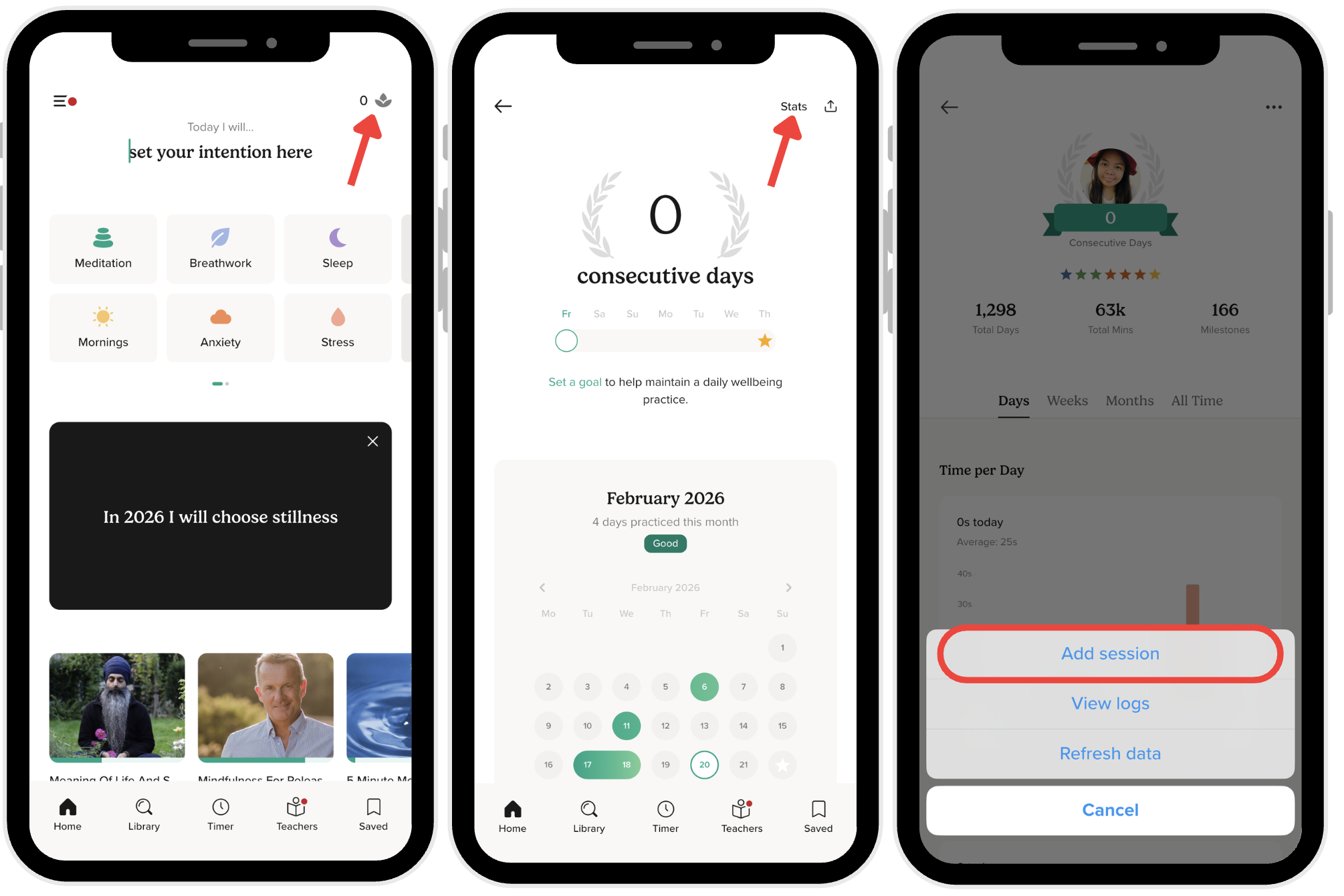
- Tap the profile icon (the lotus icon) in the top-right corner of the Insight Timer app screen.
- Tap Stats to view your meditation statistics and practice history.
- Tap the three dots (⋯) icon in the upper-right corner of the Stats screen to open additional options.
- Select Add Session from the menu.
Enter your session details
When you select "Add Session," a form will appear where you can enter the details of your meditation practice. You'll need to provide:
- Date: The date you completed the meditation session.
- Duration: How long you meditated, in minutes.
- Practice type: The kind of meditation or mindfulness practice (e.g., guided meditation, yoga, breathwork).
Fill in these details carefully to ensure your stats remain accurate. Save your entry and your statistics will update immediately to include the newly added session. Your meditation streak will also update if this session fills a gap in your practice history.
This feature is especially useful if you've been practicing consistently but haven't always tracked your sessions in the app, or if you want to honor and record important retreats or intensive practice periods.